

Google’s AI Overviews have produced some alarmingly bad advice, from suggesting bizarre tips about checking for ‘blinker fluid’ to fix car indicators and more. These factual errors are especially concerning, given that the feature is now accessible to people in more than 200 countries. Users don’t have to accept these AI-generated summaries. Several quick ways exist for those wondering how to disable AI Overview or turn it off on Google.
This piece walks through practical steps to disable the AI Overview on Google on both desktop and mobile devices. Users can regain control over their Google search experience and access traditional search results without Google AI Overviews interfering. They can change browser settings, use web filters, or switch to a different search engine entirely.
What Are Google AI Overviews and Why Turn Them Off?
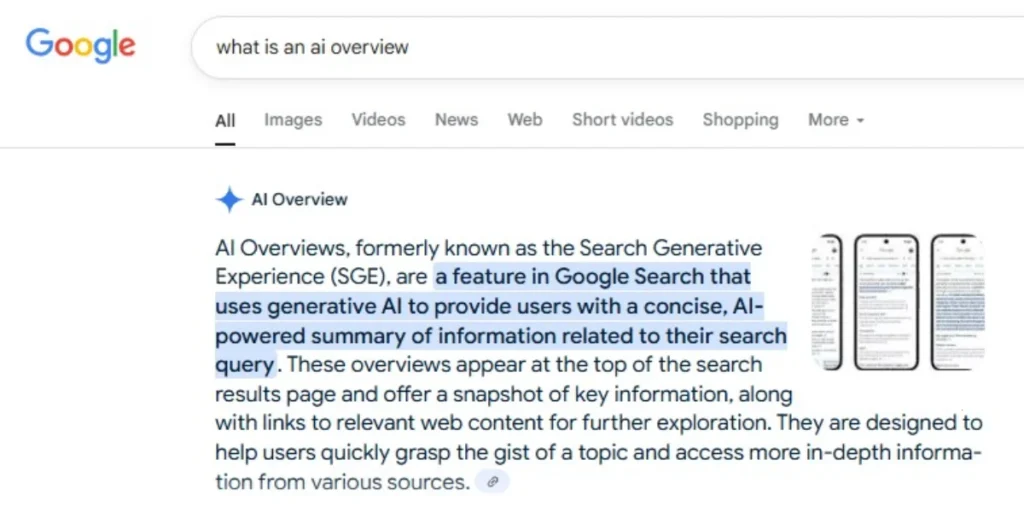
What Are AI Overviews?
AI Overviews are Google’s generative artificial intelligence feature that produces AI-generated summaries at the very top of search results, often called ‘position zero’. Featured snippets extract text from a single webpage. AI Overviews blend information from multiple sources using Google’s Gemini large language model. The feature launched as Search Generative Experience (SGE) in May 2023 and was rebranded as AI Overviews in May 2024. As of March 2026, Google AI Overviews appear on 48% of total search queries, with high rates for informational searches at 59% and commercial intent searches at 19%.
The technology relies on retrieval-augmented generation (RAG), which allows the model to check specific sources outside its training data and cite the sources it draws on. The system generates responses by predicting text based on statistical patterns rather than by verifying facts against a confirmed database, which is a consequence of this approach.
Related Article: AI Mode Explained: What Google’s New Search Feature Means for You
Common Issues with AI Overviews
The feature has faced criticism for generating content that is systemic, nonsensical, and dangerous. For example, AI Overviews suggested that users add glue to pizza or eat at least one small rock per day. The system also provided incorrect information, stating Barack Obama was America’s first Muslim president and drew from an academic book title rather than factual sources.
Security researchers have shown that AI Overviews can be manipulated with ease through spam. Websites create self-promotional listicles claiming to be ‘the best’ in a category, and AI Overviews cite these biased sources as truth. Incorrect business phone numbers appear in AI Overviews even when entered correctly in Google Business Profile.
AI Overviews can and will make mistakes according to Google’s own documentation. The technology generates hallucinations by fabricating citations or combining real facts in misleading ways.
When You Might Want to Disable Them
Users who catch repeated errors lose trust in search results over time. Those researching medical symptoms, financial advice, or academic topics face risks when AI search fails and delivers convincing-sounding wrong answers. The zero-click phenomenon means 59% of Google searches now result in zero clicks, with users reading synthesised answers instead of exploring original sources. Some people prefer controlling when and where they use AI rather than having it forced upon every search query.
How to Turn Off AI Overviews on Desktop

Method 1: Change Chrome Search Engine Settings
Chrome provides the most permanent solution for disabling the AI Overview in Google on desktop browsers. Go to chrome://settings/searchEngines in the address bar to access search engine management. Select ‘Manage search engines and site search’, then scroll to ‘Site search’ and click the blue Add button.
Create a custom search entry with any preferred name, such as ‘Google Web’ or ‘AI Free Web’. Enter a trigger keyword like ‘og’ or ‘@web’ for the shortcut field. The URL field requires this string: {google:baseURL}search?q=%s&udm=14. The udm=14 parameter forces Google to display the Web Philtre view and strips AI Overviews from results.
Click the three-dot menu next to the new entry after you save it, then select ‘Make default’. All address bar searches will now bypass AI-generated summaries.
Method 2: Use the Web Philtre
Google provides a ‘Web’ filter among existing options like News and Images. This philtre appears below the search box on results pages, though users may need to click the ‘More’ menu to locate it. Selecting Web removes AI Overviews and displays only traditional text links.
The limitation: this works as a per-search solution rather than a permanent fix. Users must select the Web filter for each query.
Method 3: Add Custom Search Parameters
Manual URL modification is another way to achieve this. Append &udm=14 to the URL in the address bar after performing any Google search. The page reloads with Web-only results. Alternatively, visit udm14.com, which functions as a proxy search interface with AI Overviews stripped out.
Firefox Desktop Setup
Firefox needs a different approach since desktop versions lack support for custom search engines. Open the Bookmarks menu and select ‘Manage Bookmarks’. Right-click a folder, choose ‘Add Bookmark’, then enter a name like ‘Old Google’, the URL https://www.google.com/search?q=%s&udm=14, and a keyword such as ‘og’. Type the keyword before any address bar search to trigger Web philtre results.
How to Disable AI Overview on Google on Mobile
Blocking Google AI Overviews on mobile is harder than desktop solutions. Mobile browsers lack plugin support, and while you can select custom search engines, you cannot add the filter parameters you need yourself. Workarounds exist through third-party services and search modifiers, though.
Android Chrome Setup Using Tenbluelinks
Tenbluelinks.org provides a dedicated solution to remove AI Overviews from mobile search results. This service works with Android browsers that support custom search engines. The setup process requires visiting tenbluelinks.org from a mobile device, then:
- Open a new tab and perform any Google search (you cannot skip this step)
- Tap the three-dot menu in the bottom right corner.
- Go to Settings, then Search Engine
- Select ‘Google Web’ from the Recently Visited section.
Searches performed through the main search bar will no longer display AI-generated summaries. But this method affects local search results, making it awkward to find nearby restaurants or businesses without opening the URL.
Manual Firefox Mobile Configuration
Firefox mobile lets you add search engines in its settings. Open the three-dot menu, select Settings, then Search. Tap Default Search Engine, followed by Add Search Engine. Enter ‘AI-free Web’ as the name and google.com/search?udm=14&q=%s as the search string. After saving, this configuration removes AI Overviews from all searches.
Add -AI to Your Searches on Mobile
Append -AI to any search query to strip AI Overviews from results as an alternative. The NOT operator breaks Google’s algorithm for surfacing AI summaries. Random characters like -i or -efewg produce similar results, though -AI proves more memorable. This method works with all mobile browsers without configuration changes.
Additional Methods to Block Google AI Overviews

Beyond browser modifications, account-level settings give you another way to reduce AI features in Google services.
Disable Google Workspace Smart Features
Google Workspace smart features control how Gmail analyses messages to power built-in functions. Go to Gmail settings and scroll to the ‘Google Workspace smart features’ section. Click ‘Manage Workspace smart feature settings’. Two toggles appear: ‘Smart features in Google Workspace’ and ‘Smart features in other Google products’. Switch both off to strip AI capabilities from Gmail and Drive. Calendar events pulled from flight itineraries will disappear, along with personalised search results in Google services.
Turn Off Google Labs Experiments
Access Google Labs through the flask icon on Google.com while signed in, or visit labs.google.com. Locate ‘AI Overviews and more’ under AI experiments and toggle it off. This disables experimental AI features, though its effect on standard AI Overviews remains inconsistent.
Switch to Alternative Browsers
Brave browser provides built-in ad blocking without the Manifest V3 restrictions that hamper Chrome extensions. The browser excludes Gemini AI integration, offering a cleaner search experience. DuckDuckGo and Startpage deliver privacy-focused results without AI summaries.
Create Your Own Custom Search URL
Bookmark https://www.google.com/search?q=%s&udm=14 or save udm14.com as a home screen shortcut for instant access to AI-free searches without configuration changes.
Conclusion – AI Overviews
Google AI Overviews may appear on nearly half of all searches, but users aren’t forced to accept them. The methods outlined above provide real alternatives, from permanent browser configurations to URL modifications. Someone can change Chrome settings, use the Web Philtre, or switch browsers to restore search results. These solutions give you control of the search experience and access to information without AI-generated summaries interfering with every query.
Can I permanently disable AI Overviews in Google Search?
There isn’t an official toggle to permanently turn off AI Overviews in Google Search settings. However, several workarounds exist, including using the Web philtre, adding custom search parameters like &udm=14 to your browser’s default search engine, or using browser extensions designed to hide AI-generated summaries.
Why do people want to turn off Google’s AI Overviews?
Many users find AI Overviews unreliable because they often provide incorrect or misleading information. The feature has been criticised for generating nonsensical answers, such as suggesting people add glue to pizza or eat rocks. Additionally, some users prefer accessing original sources directly rather than relying on AI-generated summaries that may contain factual errors.
Does adding “-ai” to my search query remove the AI Overview?
Yes, adding “-ai” to the end of your search query typically removes the AI Overview from the top of the results. This works as a search exclusion operator, though it’s a manual workaround that must be applied to each individual search rather than a permanent solution.
How can I disable AI Overviews on my mobile device?
On mobile, you can use services like tenbluelinks.org to add a custom Google Web search engine to your browser, or configure Firefox mobile to use a custom search string with the udm=14 parameter. Alternatively, adding “-ai” to each search query works across all mobile browsers without requiring configuration changes.
Are there alternative search engines without AI Overviews?
Yes, several search engines don’t force AI-generated summaries on users. Startpage, which uses Google’s results without AI features, is a popular alternative. DuckDuckGo allows users to disable AI features in settings, whilst Brave browser and Ecosia also provide search experiences without mandatory AI Overviews.